So, you’re creating your Instagram page. Let’s walk through how to set it up professionally so people instantly trust your brand. When a viewer lands on a messy or incomplete page, they’re less likely to follow and interact with you. Let’s create a page your customers feel comfortable engaging with.
Reminder: Many pages grow without perfect optimization. Quality content is what truly drives growth. Once you’ve set up your page, check out our other content to learn more.
Step 1: Initial Instagram Page Setup
Start by securing your account. Use a strong, unique password stored safely in a password manager. Never reuse old passwords or simple ones like your business name, protect your page from hackers.
Now, choose your username. Keep it short, simple, and recognizable. Your username appears on your reels and posts, so make it clean and easy to remember. If your preferred name is taken, try adding small variations. For example, at Inikus Media, we might use:
- @inikus
- @inikusmedia
- @inikus.com
- @inikus.media
Use the first available one that keeps your branding intact.
Step 2: Optimize Your Name for Search
Your Instagram name helps people find you through search, so make it keyword rich. You can change your name twice every 2 weeks so don’t worry if you want to change it later. For inikus media our username is @inikusmedia but our name is “Organic Social Media Marketing | Inikus Media”.
Example:
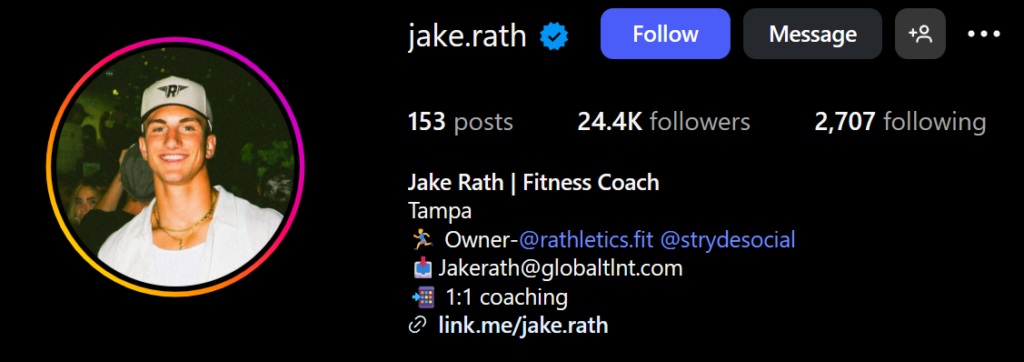
If someone searches for your service, your page can appear, even if they don’t know your brand name yet.
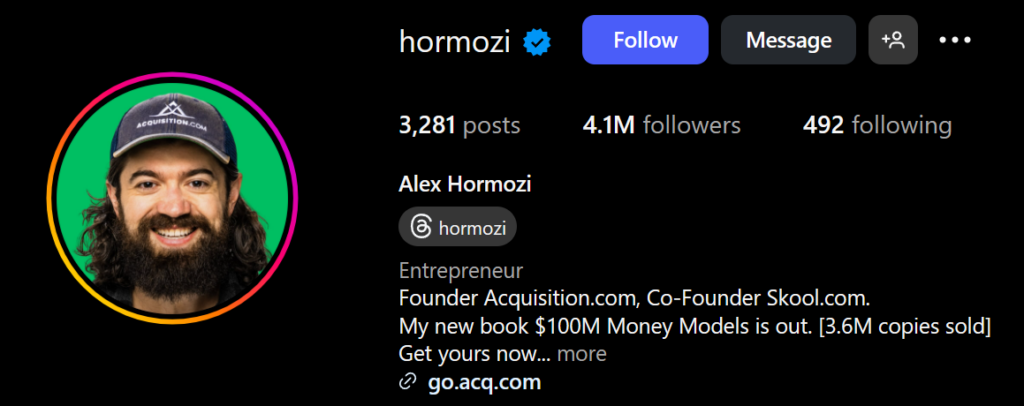
If you’re building a personal brand, you can use your own name, like Alex Hormozi, since people may search directly for you. Your name is your brand.
Step 3: Write a Converting Bio
Your bio is the first thing visitors read. Keep it to three lines:
-
Who you help (your audience)
-
Why you’re good (your proof or results)
-
What to do next (your call to action)
Examples:
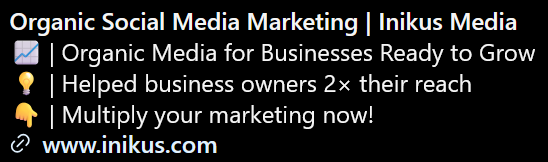
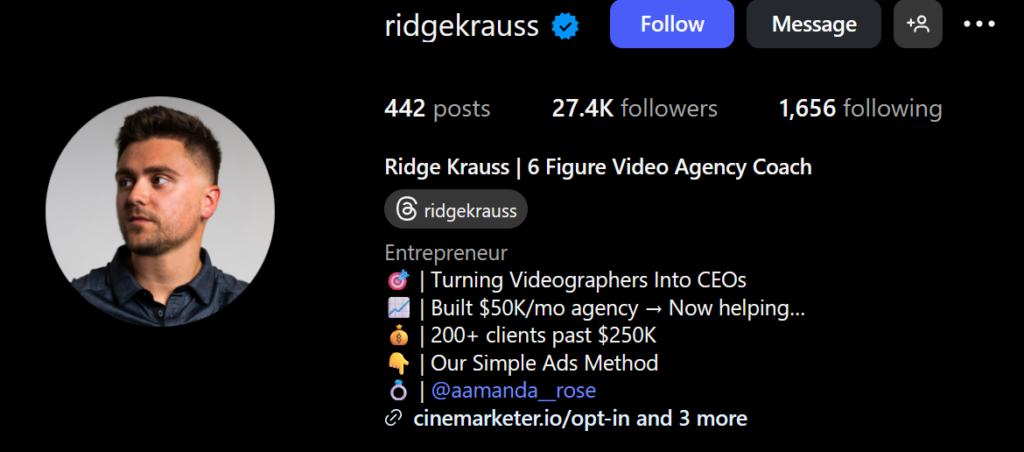
Your bio should make it clear who you serve, why you’re credible, and what the next step is.
Step 4: Choose the Right Profile Picture
You can use either your logo or a professional photo of yourself.
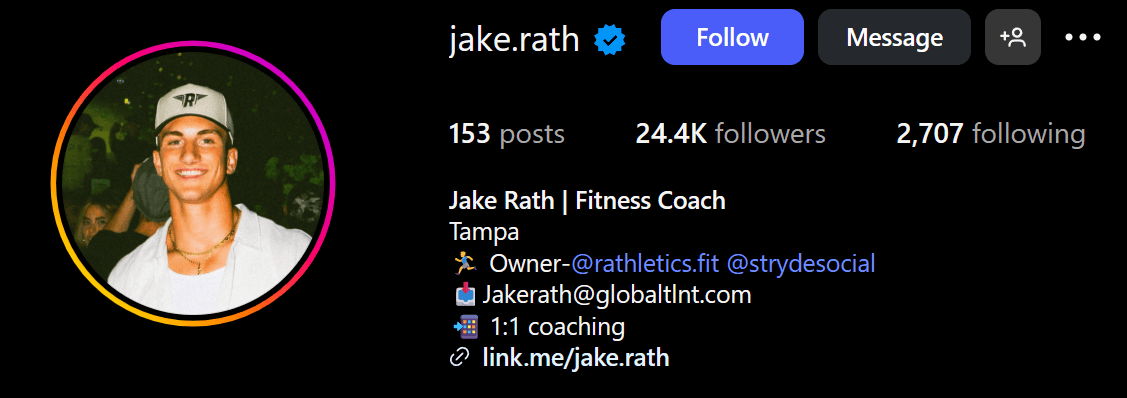
Faces tend to convert better because people connect with people. However, if you want your brand to stand apart from one person, use your logo instead. If you go with your face, a clean solid colored background has shown to increase clicks to your profile. Need a quick tool to clean up your photo background? Try pfpmaker.com.
Step 5: Add Your Website or Links
If you have one main link (like your booking or product page), add it directly.
If you need multiple links (store, website, YouTube, etc.), use a link-in-bio tool such as Linktree, Beacons, or Direct.me.
Keep it minimal, too many options overwhelm people.
Step 6: Choose the Right Account Type
Instagram offers three types of accounts: Personal, Creator, and Business.
-
Personal: Avoid this for business. You can’t view insights or run ads.
-
Business: Best for brick-and-mortar stores you can run ads and see stats. However you can’t use trending sounds which limits your content options. However you can add a location which is great for local businesses.
-
Creator: Best for online businesses and creators, access analytics, ads, and trending sounds. However you can’t add your location.
For most small businesses, Creator is usually the best choice.
Step 7: Create Effective Highlights
Highlights live under your bio and are great for building trust fast. Viewers often tap these before scrolling your Instagram feed, so make them count. You can build highlights from stories. So if you want to add anything to a highlight then just add it to your story first.
Stick to a soft max of 5 since that is the max number a phone user can see before having to scroll. The max is 7 on pc so we would definitely not suggest going past that.
Suggested highlight categories:
- Reviews / Client Wins
These are great to show how your product/service is loved by fans. These can be video testimonials to screenshots of google reviews. - Offers or Services
Share directly what your product or service is here. - About Us
If somebody is on your page they probably want to know more about who you are. That is why an About Us section can be great to put here. - How It Works
A section of what it looks like to work with you or demonstration of how your product works is also great. A timeline of what working with them is a great way to convert leads. - FAQs
A frequently asked questions place is a great place to answer those common questions. This will help qualify potential leads. - Community / Testimonials
If your community posts about you and your product then a community section can be great. This will help viewers feel more connected to the brand.
Step 8: Pin Your Best Posts
Pins let you keep three posts at the top of your feed. Use this space for:
-
Your most popular post
-
A short “About” or Story video
-
A video sales letter or promo reel
Ask yourself: If someone new lands on my page, which three posts show my brand best?
Step 9: Optimize Your Insta Settings
These small changes make a big difference for visibility and reach.
Edit Profile → Show Account Suggestions on Profile
Turn this on so your profile appears on related pages.
Account Privacy → Allow Public Photos and Videos in Search Results
Turn this on so Google can index your content.
Sharing and Reuse → Keep All Options On (Except Downloads)
This lets others share your posts and increases reach. Disable “downloads” only if you’re worried about people saving your videos.
Media Quality → Upload at Highest Quality
Enable this on your phone. It prevents Instagram from reducing video quality.
Account Status → Keep Everything Green
If Instagram flags your account (“content can’t be recommended”), your growth will stall.
If support can’t fix it, consider creating a new account to rebuild faster.
Step 10: Crosspost to Facebook
Link your Facebook Page through Meta Business Suite and enable crossposting.
This allows your Instagram content to automatically post to Facebook. easy extra reach for free.
If you want separate strategies between Facebook and Instagram, you can always post manually later.
Step 11: Post Consistent, Quality Content
Optimization sets the foundation, but content drives growth. Expect your first few videos to get minimal reach; the algorithm is still learning about you. Keep posting at least five to ten videos before evaluating performance.
Focus on your target audience. Your content should speak directly to their needs, problems, and interests.
Final Takeaway
Setting up your Instagram the right way helps your small business look professional, reach more customers, and build long-term trust.
But remember, real growth comes from consistent, valuable content.
💬 Ready to Grow Your Business Organically?
At Inikus Media, we help business owners multiply their marketing efforts, turning their ads, SEO, and content into a connected growth system that works together.
📅 Schedule a free chat today to see how we can grow your reach and engagement:
FAQ: Common Questions About Instagram Setup for Small Business Owners
1. How do I set up an Instagram account for my small business?
Create an account, select a Creator or Business type, fill out all your info, and make your bio clear about who you help and how.
2. Should I use a Business or Creator account?
Use Business if you’re local and want a map location.
Use Creator if you’re focused on content and want trending sounds.
3. What should I write in my Instagram bio?
Use three short lines:
-
Who you help
-
Why you’re good
-
Call to action
4. How do I make my Instagram look professional?
Use a clean logo or professional photo, branded colors, well-organized highlights, and consistent top posts.
5. How can I get more followers for my business?
Post quality, helpful videos 3–5 times a week. Use trending sounds, reply to comments, and engage with followers.
6. What’s the best link tool for Instagram?
Use Linktree, Beacons, or Direct.me if you have multiple links.
Otherwise, send traffic directly to your website.
7. Why isn’t my content getting views?
New accounts have low reach at first. Keep posting and make sure your account status is healthy (green). Post relevant, high-quality content.
8. How often should I post?
Depends on your goal. But if you post 3–5 videos a week plus daily stories you will grow.
9. Should I still use hashtags in 2025?
It doesn’t hurt, 3–7 targeted hashtags per post help categorize your content. This will not be what actually gets you views, again, good content will always get views.
10. Can I manage Instagram and Facebook together?
Yes. Connect them in Meta Business Suite to post and track analytics from one dashboard.
11. How do I optimize Instagram for SEO?
Use keywords in your Name, Bio, and Captions. Enable “Allow content to appear in search results.”
12. Do I need professional photos?
No. Modern smartphones work great. Focus on lighting and consistent style. Sometimes lower quality recordings do better on social media since viewers connect quality with advertisements.